


Video tutorial
Watch the complete Vector Painter Nest workflow
Follow the full process from importing and configuring an SVG file to reviewing the nesting result, adding holding tabs and downloading the finished cutting sheets.


Vector Painter Nest automatically arranges vector parts on material sheets, reduces unused space, preserves Cut, Score and Engrave operations, and prepares organized SVG cutting sheets for production.
This product is a recurring monthly subscription to the online software—not a one-time digital file purchase. Each successful monthly payment provides or extends access for one month. A free Vector Painter customer account and login are required to use the full version.
Beta version: Vector Painter Nest is under active development and is continuously being refined and improved. Minor inaccuracies or unexpected results may occur. Generated layouts are optimization suggestions designed to provide a practical balance between material efficiency and processing speed; they are not guaranteed to be the mathematically smallest possible arrangement. Always review the result before cutting.

You stay in control at every stage. Import, configure, nest, review and export directly in your browser.
Import your own laser-cut vector file. The software identifies the parts, builds their hierarchy and keeps the original vector geometry and color operations.
Enter the material sheet size and regulate the spacing between parts and the margins from the sheet edges. Mark any areas the layout must avoid.
Choose one of the available Swift, Normal or Deep modes and let the laser cut nesting software create the sheet layout.
Move and rotate parts manually without overlaps, add holding tabs and download the finished material sheets as SVG files.
Follow these two screens to configure the imported artwork correctly, review the nesting result and export an organized SVG cutting file.
Follow the full process from importing and configuring an SVG file to reviewing the nesting result, adding holding tabs and downloading the finished cutting sheets.


The software combines automatic part placement with practical SVG preparation tools for real laser-cutting workflows.
Parts are arranged close to the usable top-left area of each sheet with the selected spacing, helping reduce unnecessary gaps and material waste.
When the geometry and spacing allow it, smaller parts can be nested inside real openings in larger parts to make better use of otherwise empty material.
If the complete project does not fit on one sheet, the software continues the layout across additional sheets while keeping the result organized.
Mark zones that must stay empty—for example, existing cutouts, surface defects, clamps or areas you do not want to use.
Move, rotate or delete parts before and after SVG nesting. Collision protection prevents parts from intersecting other parts, restricted areas and protected sheet margins.
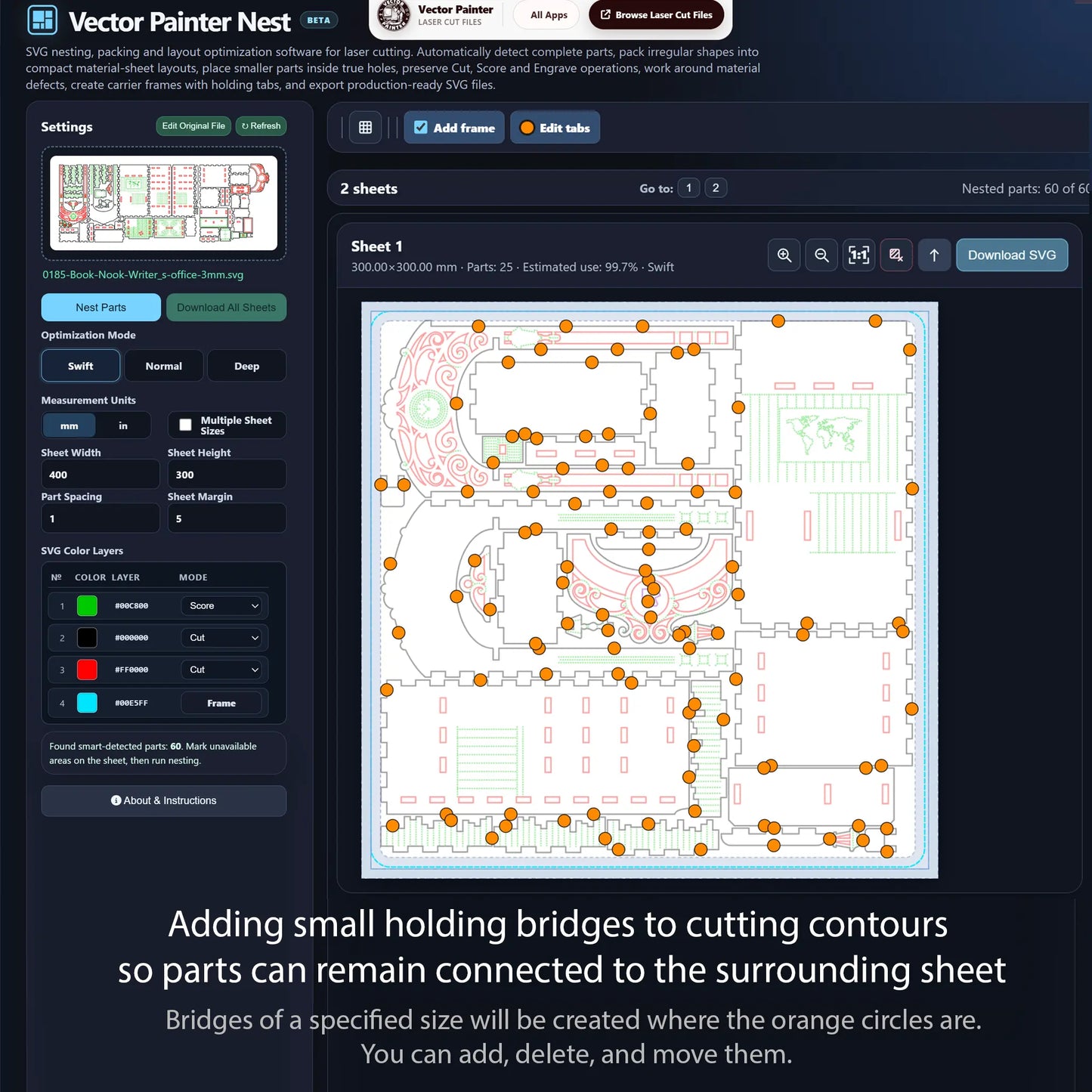
Place orange markers along the cutting contours. At every marked position, the exported SVG receives a small uncut bridge of the selected size, keeping the part attached to the surrounding sheet until you are ready to press it out.
Each detected part is organized as one SVG group. Its outer contour, internal cutouts, Score lines and Engrave elements stay together, making the part easier to select, move, rotate and continue editing in compatible vector or laser software after export.
Export the completed nesting result as SVG cutting sheets ready to open in compatible laser-control or vector software.
Clean SVG files required: Vector Painter Nest works with standard vector elements such as paths, straight lines, curves, rectangles, circles, ellipses and polygons. SVG effects are not supported. Before uploading, convert text, live shapes, brushes and other effects to regular vector paths, and remove raster images, clipping effects and unnecessary hidden objects.

Prepare compact SVG cutting sheets, send them to compatible laser software and keep every physical sheet organized for production and assembly.


Automatic nesting gives you a strong starting point. You can then regulate spacing, move parts and rotate them manually while collision protection keeps the layout free from intersections.
Inspect and prepare the imported SVG before nesting. Move or rotate vector elements, remove unnecessary parts, regulate spacing and define areas of the sheet that may or may not be used.
Move and rotate placed parts without rebuilding the complete project. Parts cannot overlap one another, cross a restricted zone or enter the protected sheet margin.
Create an optional outer frame around the finished compact layout when your production workflow or material preparation requires one.
The orange circles show where holding tabs will be created. At these positions, small gaps of the selected size are added to the cutting contours. The resulting uncut bridges keep parts securely inside the sheet during cutting and handling, while allowing them to be pressed out easily afterward.


Use the complete online tool with your own SVG projects without per-project or per-export limits for the duration of your active paid access.
| Product type | Online browser-based software subscription |
|---|---|
| Billing period | Monthly recurring payment |
| Usage limits | Unlimited while the subscription is active |
| Import / Export format | SVG |
| Installation | No installation—runs in a modern web browser |
| Account required | Yes, a Vector Painter customer account is required |
| Physical item | No physical product will be shipped |
Explore the workflow with the built-in demo SVG before purchasing. The demo processes only the included sample project: importing your own files and the full Edit Original workflow are available with the paid subscription. Demo downloads are marked for testing only and are not intended for production cutting.
Try the Free DemoNo. Vector Painter Nest runs online in your web browser. An internet connection and a logged-in Vector Painter customer account with active access are required.
No. This product is a recurring monthly subscription. Each successful monthly payment provides or extends access for one month.
Yes. The full paid version lets you upload your own SVG files. The free demo uses only the included sample SVG.
The software imports clean SVG vector files and exports the finished laser cutting layouts as SVG files.
Use clean SVG files made from standard vector paths, straight lines, curves and basic shapes. Effects are not supported. Convert text, brushes, live shapes and other effects to regular paths before uploading, and remove raster images and unnecessary hidden objects.
No. Nesting is an optimization process, and results depend on part geometry, quantity, spacing, sheet size and the selected mode. The software is designed to provide a practical balance between material efficiency and processing speed; no automatic SVG nesting software can guarantee the mathematically smallest possible layout for every project.
Canceling stops future monthly renewals. Access remains available until the end of the access period already provided by your successful payment.
No. This subscription provides access to the nesting software only. Laser-cut project files, plywood, machine time and physical products are not included unless explicitly stated elsewhere.
Production check: Always review the exported SVG in your laser-control or vector software before cutting. Confirm dimensions, units, color operations, duplicate lines, tab positions and machine settings using a small test when necessary.