Ir directamente a la información del producto
1 de 11

Vector Painter

Centaur Tabletop Miniature - Laser Cut File SVG & DXF

Precio habitual $3.00 USD
Precio habitual Precio de oferta $3.00 USD
Oferta Agotado
Impuestos incluidos.

Este es un producto digital que se enviará automáticamente a su dirección de correo electrónico después de la compra. No se enviará ningún producto físico.

License

sobre las licencias

Oferta comercial especial

**DESCRIPCIÓN**

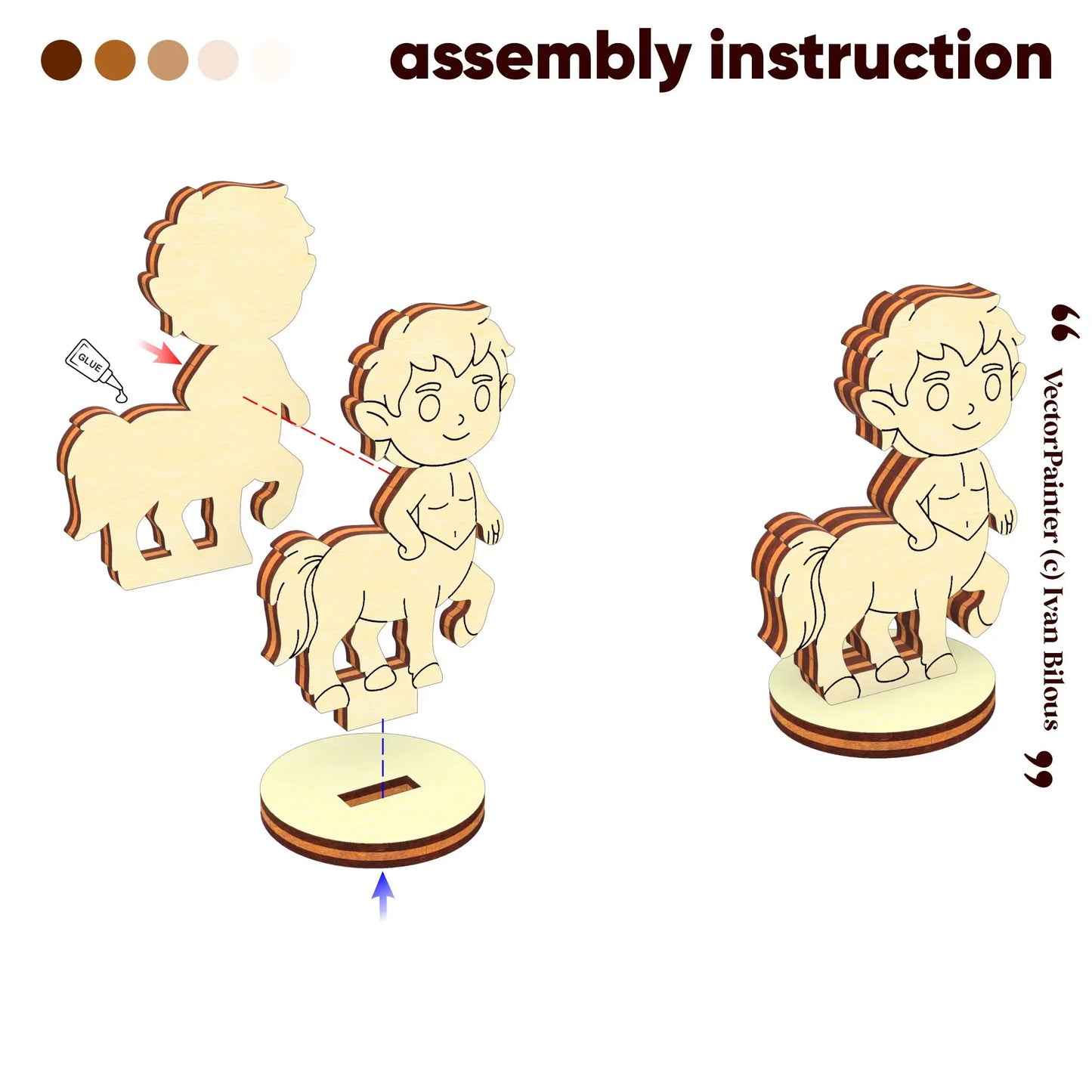
Bring ancient strength and wild spirit to your fantasy world with this Centaur Tabletop Miniature laser cut file. This legendary half-human, half-horse creature is perfect for tabletop role-playing games, miniature collections, or mythological dis...
Ver todos los detalles

Frequently Asked Questions

How and when will I receive my laser cut files?

After purchase, you will receive an email with a download link immediately, usually within a few minutes. The email will be sent to the email address you provide during checkout. Please check your Inbox and Spam/Junk folder if you do not see it.

Detailed purchase and download instructions you can read here.

If you still cannot access your files, contact us at info@vector-painter.com.

Will these laser cut files work with my laser machine and software?

Yes, the files are designed for most common laser cutting workflows. Each design includes vector formats such as SVG, DXF, CDR for CorelDRAW, and AI for Adobe Illustrator. At least one of these formats should work with popular software and machines, including LightBurn, xTool, Glowforge, RDWorks, CorelDRAW, Adobe Illustrator, Inkscape, and other vector-based programs.

Before purchase, please check the size of the largest part listed in the product description. If the largest part fits your wood sheet or machine working area, you can use the file. Larger projects can often be cut across several sheets if each individual part fits your machine.

Are assembly instructions included, and do I need glue?

Yes, all complex 3D projects include step-by-step assembly instructions in PDF format. Simple flat designs or very basic models, such as simple boxes or projects made from only a few parts, may not include instructions because the assembly is usually straightforward.

Most of our 3D designs include small connection notches that help the parts fit together without glue. However, the final fit depends on your material, real thickness, laser kerf, focus settings, cutting quality, and machine setup.

For a stronger and longer-lasting finished model, we recommend using glue. Some flat layered designs, decorative projects, and multi-layer ornaments may require it.

Please check each product description before purchase to see exactly what is included.

What should I do if the design does not include a file for my material thickness?

Most 3D designs include several versions for common material thicknesses, such as 3 mm, 1/8", 4 mm, 5 mm, 6 mm, or 1/4".

If your material differs by more than about 0.2 mm, you can often scale the file. Import the version that is thicker than your material and use this formula:

New scale = real thickness / file thickness × 100%

Example: if your wood is 3.5 mm thick, use the 4 mm file:

3.5 / 4 × 100 = 87.5%

So the 4 mm file should be scaled to 87.5%.

Please note: after scaling, the final size of the model will also change.

What discounts, bundles, free laser cut files, and best deals are available?

We offer discounts when you buy multiple files. Use these coupon codes at checkout:

  • 3 files — WHOLESALE3 — 15% off
  • 5 files — WHOLESALE5 — 20% off
  • 10 files or more — WHOLESALE10 — 30% off

You can also find themed collections with the best bundle prices in our Laser Cut Bundles section.

We also have a section with free laser cut files, where you can download sample SVG and DXF designs, test the file quality, and try the structure of our projects before buying:

For the lowest price per design, the best option is our Design Club membership. Members get regular access to new files, premium designs, and the best long-term value if you need many projects.

Can I use the laser cut files for commercial purposes?

Yes, you can use the files commercially only if you purchase a commercial license and only within the limits of the license you choose.

Available license options may include:

  1. Personal License — for personal use only.
  2. Starter Commercial License — sell up to 30 physical items made from the design.
  3. Commercial License — sell up to 100 physical items made from the design.
  4. Extended Commercial License — unlimited physical item sales.

You may sell finished physical products made from the files, but you may not resell, share, upload, copy, or redistribute the digital files themselves.

Please read the full license details here:
https://vector-painter.com/pages/licenses

Can I make the model larger for the same thickness? Can I simply scale the laser cut file?

No, please do not simply scale a 3D laser cut file that includes slots, tabs, holes, or other interlocking joints.

If you enlarge the whole design, the slots and connection points will also become larger and will no longer match the material thickness the model was designed for.

If you reduce the whole design, the slots will become too small, and the parts may not fit together.

The only correct way to resize a 3D laser model is to scale the design to the desired finished size and then manually adjust all slots, tabs, holes, and joints back to the correct material thickness. This is a very time-consuming process, so we do not provide this type of custom resizing.

If you want to make a larger model, the best option is to use a thicker material and the file version designed for that thickness.

What power, speed, and layer settings should I use for each color?

Vector files cannot technically store machine-specific power and speed settings, so you should always check and set the layer parameters after importing the file into your laser software.

The recommended mode for each color is usually shown on page 2 or 3 of the PDF instructions.

In most Vector Painter designs, the colors are used this way:

  1. Green — Score / Pen / Line engraving. This works like a cut line, but with lower power and higher speed, so the laser leaves a visible mark without cutting through the material.
  2. Blue — Engraving.
  3. Red — Cutting. (Inner cuttting lines)
  4. Black — Cutting. (Outer cuttting lines)

Power and speed values are always individual and depend on your laser machine, laser power, material type, material thickness, and number of passes.

Please use the recommended settings table for your laser machine and material, ask your machine manufacturer, or use settings from a previous successful project made with the same material.

Parts do not fit together — what should I check?

Fitting issues are usually caused by a mismatch between your real material thickness and the file version. First, measure your plywood, MDF, or acrylic with a caliper. Then use the folder that matches your material: 3 mm, 1/8" or 3.175 mm, 4 mm, 6 mm, or 1/4" or 6.35 mm.

After importing the file into your laser software, check that the slot width matches your real material thickness. Some programs, for example xTool Creative Space, may automatically resize the file during import if this option is enabled. Please check settings such as File → Import → Keep its size.

If the difference is more than about 0.3 mm / 0.012", the parts may be too tight or too loose.

If needed, the file can be scaled:

New scale = real thickness / file thickness × 100%

Example: 3.5 mm wood with a 4 mm file = 87.5%.

If you have trouble, message us and we’ll help - info@vector-painter.com

Can I use these files with Cricut or CNC milling machines?

Our designs are created primarily for laser cutting machines. Most files include SVG formats, so they may open in Cricut Design Space or some CNC milling software, but they are not specifically designed or tested for Cricut or CNC milling.

Some designs include separate cut, score, and engraving lines, which may appear as separate objects in Cricut Design Space and may need adjustment.

For CNC milling, you would need to set up the tool paths yourself, including inside and outside cuts, so that all slots and connections fit correctly. CNC milling machines may also be unsuitable for very small details or narrow slots.

For 3D models, material thickness is very important. If the material is thinner or thicker than the file version, the parts may not fit correctly.

We recommend using these files with laser cutting machines. If you need help preparing a file for Cricut, please contact us before purchase.